How to Set Up OpenClaw in 20 Minutes
Getting started with OpenClaw takes about 20 minutes and follows 4 steps: install the CLI, connect your messaging apps, describe your automation in plain English, and test. OpenClaw is completely free and open-source with over 200,000 GitHub stars and an MIT license, so you're not locked into anyone's pricing. It works with any major AI model — Claude, GPT-4o, Gemini, DeepSeek, or local models through Ollama. You'll need an API key from your chosen LLM provider, which typically runs $10-50 per month depending on how much you use it. No coding required for any setup path. The community has built 10,700+ skills on ClawHub that handle everything from email triage to appointment booking. One thing to know upfront: the initial configuration has a learning curve, especially around the .md configuration files. It's not hard, but it's not instant either. Start with a single simple automation and build from there.
Here's what to expect when you get started. For detailed installation commands, see our complete installation guide. Already know what OpenClaw is? Jump to Step-by-Step Installation.

Workshop Preview
Full 20-minute walkthrough included in the workshop
Get the complete step-by-step setup guide
What You Need Before Installing OpenClaw
Before you install, make sure you have these prerequisites ready. Most developers already have everything — if not, setup takes an extra 5 minutes.
Computer (macOS, Windows via WSL2, or Linux)
macOS 12+, Windows 10/11 with WSL2, or modern Linux. 10GB+ disk space recommended.
Internet connection
For app integrations, API calls, and updates
20 minutes of focused time
Uninterrupted setup session — the workshop guides every step
AI API key (Claude, GPT, or local Ollama)
Anthropic Claude recommended. Free tier available for testing.
VPS for 24/7 operation (optional)
Hetzner, DigitalOcean, or any Linux VPS with 2GB+ RAM. $5-15/mo.
Node.js 18+ installed
Node.js 22 LTS recommended. Check with: node --version
Download the latest LTS version from nodejs.org. We recommend Node.js 22 LTS. After installing, verify with node --version in your terminal. If you're on a Mac, you can also use brew install node.
What Does the Setup Process Look Like?
Here's what you'll do in the workshop. Each step includes video guidance and templates.
Step 1: Install via CLI
~5 minGet OpenClaw from the official site and install via the Node.js CLI. OpenClaw is free and MIT-licensed.
Step 2: Connect Your Apps
~5 minLink email, calendar, CRM, and other tools via OAuth.
Step 3: Configure Automation
~5 minDescribe what you want to automate in plain English.
Step 4: Test & Launch
~5 minVerify with test data, then activate your automation.
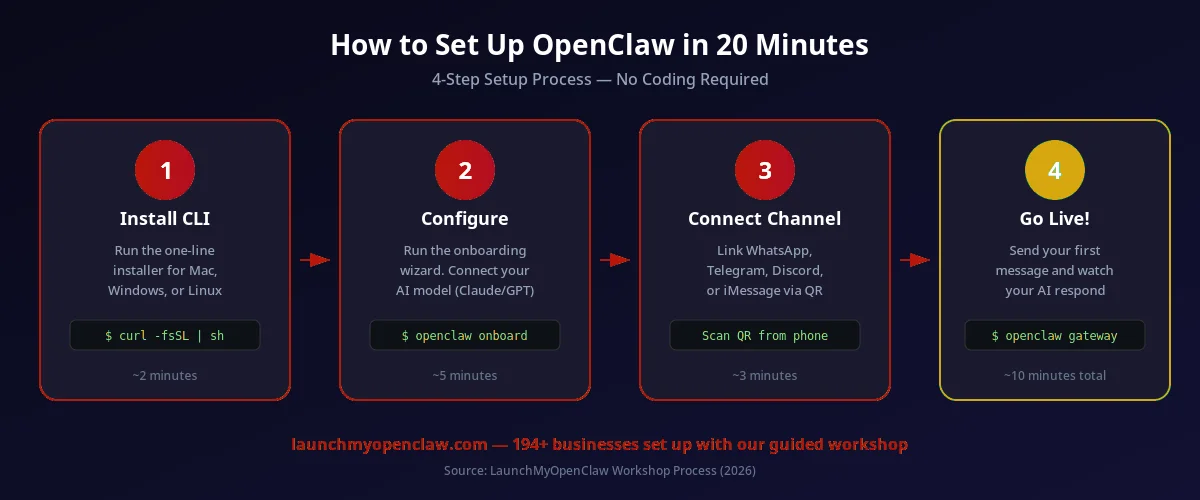
The complete OpenClaw setup flow — from installation to your first live automation
Step-by-Step Installation
Copy these commands to get OpenClaw installed on your machine. The entire process takes about 5 minutes. For the full walkthrough with video guidance, see our detailed installation guide.
macOS / Linux
# Install OpenClaw with the one-line installer
curl -fsSL https://raw.githubusercontent.com/openclaw/openclaw/main/install.sh | sh

# Verify installation
openclaw --version

# You should see: openclaw v1.x.x
Windows (WSL2 Required)
# Step 1: Install WSL2 if not already installed
wsl --install

# Step 2: Restart your computer, then open WSL terminal

# Step 3: Inside WSL, install OpenClaw
curl -fsSL https://raw.githubusercontent.com/openclaw/openclaw/main/install.sh | sh

# Verify
openclaw --versionOpenClaw is a Node.js CLI application designed for Unix-like environments. WSL2 gives you a full Linux environment inside Windows with near-native performance. Most business automation tools today run best on Linux.
Set Your API Key
After installing, configure your AI model API key. OpenClaw supports multiple AI models — Claude is recommended for complex agent tasks.
# Set your Anthropic API key (recommended)
openclaw config set api-key sk-ant-your-key-here

# Or use OpenAI
openclaw config set provider openai
openclaw config set api-key sk-your-openai-key

# Or use a local model via Ollama (free, private)
openclaw config set provider ollama
openclaw config set model llama3.1
Configuring Your openclaw.json
The openclaw.json file is the heart of your setup. It controls which AI model to use, which messaging channels to enable, what skills your agent has, and how memory works.
{
  "name": "my-business-agent",
  "model": "claude-sonnet-4-20250514",
  "channels": {
    "whatsapp": { "enabled": true },
    "telegram": { "enabled": true },
    "imessage": { "enabled": false }
  },
  "skills": ["email", "calendar", "crm"],
  "memory": {
    "enabled": true,
    "provider": "local"
  },
  "access": {
    "mode": "allowlist",
    "allowed": ["+1234567890"]
  }
}
Model
Choose your AI provider and model. Claude Sonnet 4 is the default and recommended choice — it balances speed, cost, and intelligence for business automation tasks.
Channels
Enable the messaging platforms you want. WhatsApp and Telegram work out of the box. iMessage requires a Mac bridge.
Skills
Skills are what your agent can do — email management, calendar scheduling, CRM updates. See our skills guide for the full list.
Access Control
Control who can interact with your agent. Allowlist mode restricts access to specific phone numbers. See our security guide for best practices.
You don't need to configure everything at once. Start with one channel (WhatsApp is easiest) and one or two skills (email + calendar). You can always add more channels and skills later by updating your openclaw.json.
Should You Run OpenClaw Locally or on a VPS?
For testing and development, running locally is fine. But if you want your AI agent to respond to messages 24/7 — even when your laptop is closed — you'll need a VPS. Here's how the two options compare.
| Factor | Local Machine | VPS (Recommended) |
|---|---|---|
| Uptime | Only when computer is on | 24/7 always running |
| Cost | Free | $5-15/mo |
| Speed | Depends on hardware | Consistent low latency |
| Setup difficulty | Easier — just install | Slightly more steps (SSH) |
| Best for | Testing & development | Production & business use |
| Reliability | ||
| Multi-channel support |
For most businesses, a $5-10/month VPS from Hetzner or DigitalOcean is plenty. You need at least 2GB RAM and 1 vCPU. If you're running local AI models via Ollama instead of cloud APIs, you'll need a more powerful server (8GB+ RAM, GPU optional). The Maton Gateway can help route messages between your VPS and local devices.
Quick VPS Setup (Hetzner Example)
# SSH into your new VPS
ssh root@your-vps-ip

# Install Node.js 22
curl -fsSL https://deb.nodesource.com/setup_22.x | sudo -E bash -
sudo apt-get install -y nodejs

# Install OpenClaw
curl -fsSL https://raw.githubusercontent.com/openclaw/openclaw/main/install.sh | sh

# Run OpenClaw in the background with pm2
npm install -g pm2
pm2 start openclaw -- start
pm2 save
pm2 startup
Choosing the Right AI Model
OpenClaw works with multiple AI providers. Your choice affects cost, speed, and capability. Here's a guide to picking the right model for your use case.
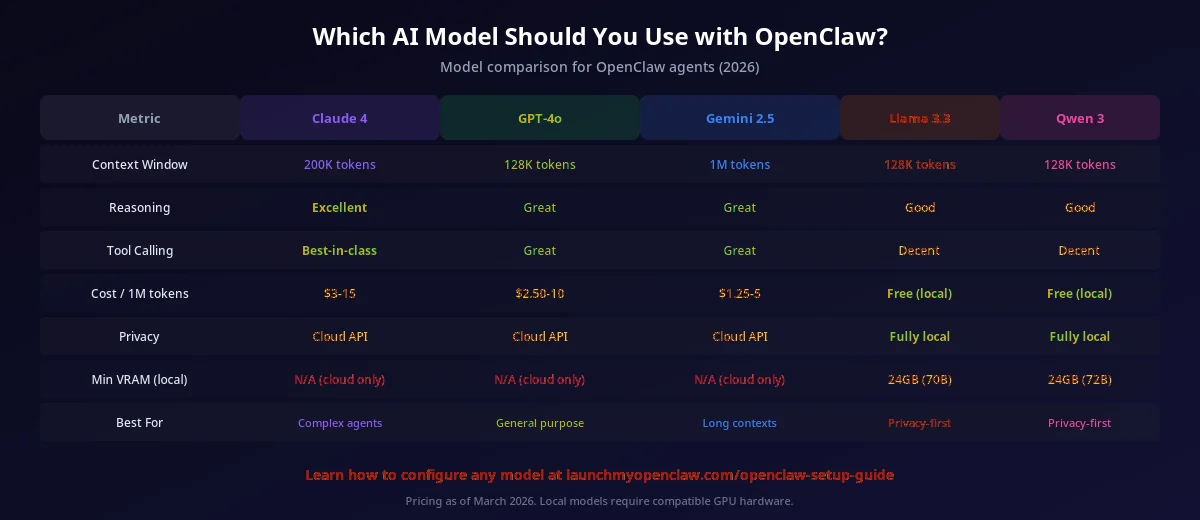
AI model comparison for OpenClaw business automation
Claude (Anthropic)
RecommendedBest for complex agent tasks: multi-step reasoning, tool use, and long conversations. Claude 4 Sonnet offers the best price-to-performance ratio.
- Complex reasoning
- Tool use (email, CRM)
- Long context windows
GPT (OpenAI)
Strong general-purpose model. GPT-4o is fast and affordable. Good choice if you already have an OpenAI API key or need vision capabilities.
- Fast responses
- Vision support
- Wide ecosystem
Local (Ollama)
Run Llama, Qwen, or Mistral locally for maximum privacy and zero API costs. Requires a machine with 8GB+ RAM. Ideal for data-sensitive businesses.
- 100% private
- Zero API cost
- Less capable
Claude Sonnet 4 is the best default for most businesses. It handles complex multi-step automations, understands context deeply, and costs roughly $3-8/month for typical usage. You can always switch models later — just update the model field in your openclaw.json. Unlike Zapier's per-task pricing, OpenClaw's costs are tied to AI model usage, not automation count.
Troubleshooting Common Issues
Running into problems? Here are the most common setup issues and how to fix them in seconds. For more help, the free setup guide includes a full troubleshooting section with step-by-step setup guidance.
"openclaw: command not found"
This means the OpenClaw CLI isn't in your system PATH. The installer should add it automatically, but sometimes you need to restart your terminal.
# Option 1: Restart your terminal
source ~/.bashrc   # or source ~/.zshrc for Zsh

# Option 2: Add manually to PATH
export PATH="$HOME/.openclaw/bin:$PATH"

# Option 3: Verify the binary exists
ls ~/.openclaw/bin/openclaw
"Error: API key not configured"
OpenClaw needs an API key to communicate with your chosen AI model. Set it with the config command.
# Set your Anthropic API key
openclaw config set api-key sk-ant-your-key-here

# Verify it's set correctly
openclaw config checkNever share your API key publicly or commit it to git. OpenClaw stores it securely in your local config. If you suspect your key was exposed, rotate it immediately in your provider's dashboard.
"Connection timeout"
Usually a firewall issue. OpenClaw needs outbound HTTPS access and port 3000 for the local dashboard.
# Check if port 3000 is available
lsof -i :3000

# Open port 3000 on Linux (ufw)
sudo ufw allow 3000

# Test outbound HTTPS
curl -I https://api.anthropic.com
"Model not available"
Your API key might not have access to the model you specified. Verify your plan includes the model, or switch to a different one.
# List available models for your API key
openclaw models list

# Switch to a different model
openclaw config set model claude-sonnet-4-20250514
"Permission denied"
File permission issue, common on Linux VPS setups. Fix with the correct ownership.
# Fix OpenClaw directory permissions
chmod -R 755 ~/.openclaw

# If installed globally, fix npm permissions
sudo chown -R $(whoami) ~/.npmThe free setup guide covers all these errors and more with step-by-step setup guidance. Or contact ClawRevOps for a custom build and let an expert handle everything. You can also check the security guide for permission-related issues.
Which Setup Path Is Right for You?
DIY: Free Guide
Free
Self-paced step-by-step guide. Perfect if you're comfortable following along.
- 20-minute step-by-step guide
- 10 prompt templates with examples
- Common mistakes to avoid
- Lifetime access
Custom Build via ClawRevOps
Custom
Expert handles everything on a live call. Perfect if you want it done right.
- 60-90 minute 1:1 video call
- Custom prompts for your business
- Full OpenClaw configuration
- Integration with your tools
- 2 weeks of follow-up support
All Setup Guides
Mac Setup Guide
Install and configure OpenClaw on macOS
Windows Setup Guide
Set up OpenClaw on Windows with WSL2
Linux Setup Guide
Install OpenClaw on Ubuntu, Debian, and other distros
VPS Setup Guide
Deploy OpenClaw on a cloud VPS for 24/7 uptime
Mac Mini Setup Guide
Use a Mac Mini as a dedicated OpenClaw server
Docker Setup Guide
Run OpenClaw in a Docker container
Ollama Setup Guide
Run free local AI models with OpenClaw via Ollama
LM Studio Setup Guide
Connect OpenClaw to local models via LM Studio
Best Setup Options
Compare all setup paths to find the best fit
Kimi K2.5 Setup Guide
Configure OpenClaw with Moonshot's Kimi K2.5 model
DeepSeek Setup Guide
Use DeepSeek models with OpenClaw
GitHub Setup Guide
Clone and build OpenClaw from the GitHub repository
Gateway Setup Guide
Configure the Maton Gateway for multi-platform messaging
Discord Setup Guide
Connect OpenClaw to Discord servers and channels
Browser Setup Guide
Enable browser automation and web scraping
Email Setup Guide
Connect email accounts for triage and auto-reply
Voice Setup Guide
Enable voice interaction and phone call automation
Jarvis Skills Setup
Install and configure the Jarvis skill pack
Slack Setup Guide
Integrate OpenClaw with Slack workspaces
Troubleshooting Guide
Fix common setup errors and connection issues
Best Models for OpenClaw
Which LLM models work best for different use cases
Bootstrap Guide
Quick-start OpenClaw with pre-built configurations
Raspberry Pi Setup
Run OpenClaw on a Raspberry Pi for low-cost automation
System Requirements
Hardware and software requirements for OpenClaw
Common Questions About Getting Started
Stop Wasting 40-60% of Your AI Budget
Download the free '6 Token Drains' guide — identify the hidden patterns burning through your tokens and get copy-paste fixes for each one.
Read the Free GuideYour Competitors Are Already Automating. Are You?
Every week we send one automation that saves 10+ hours of manual work — the same playbooks our clients use to run their businesses on autopilot. Miss a week, miss the edge.
Get the Automation Playbook (Free)
One deploy-ready automation every week. Same strategies our clients pay thousands for. 400+ business owners already inside.
Need it done for you?
Book a Free Strategy Call See what we've built for real businesses →