OpenClaw iMessage Setup: AI-Powered iMessage Automation (2026)
Quick Answer: OpenClaw connects to iMessage through a bridge app running on a dedicated Mac. The three most popular bridges are BlueBubbles (free, self-hosted, requires a Mac always on), imsg CLI (lightweight command-line tool), and Beeper (cloud-based, easiest setup but less control). Once connected, your AI agent can read incoming iMessages, generate context-aware replies using your chosen AI model, and send responses automatically — all while keeping the conversation feeling natural through your persona.md settings. This works for lead follow-ups, appointment confirmations, customer support, and any conversation you'd normally handle manually. The honest caveat: iMessage automation is harder than WhatsApp or Telegram because Apple doesn't offer an official API. You need a Mac running 24/7 as the bridge, which adds hardware cost and complexity. A used Mac Mini ($200-400) works fine for this. Budget 30-45 minutes for the full setup. If you haven't installed OpenClaw yet, start with our setup guide first.

What You Need for iMessage Automation
iMessage automation requires specific hardware because Apple restricts iMessage to macOS. Here's everything you need before starting.
A Mac Running 24/7
A Mac Mini (~$599) is recommended — it's compact, affordable, and energy-efficient. Any Mac running macOS 12+ works. It must stay powered on to relay messages.
A Dedicated Apple ID
Create a separate Apple ID for your automation bot. Do not use your personal Apple ID — if something goes wrong, you don't want your personal iMessage disrupted.
Full Disk Access for Terminal
macOS requires Full Disk Access to let Terminal (or any app) read the iMessage database. Enable this in System Settings → Privacy & Security → Full Disk Access.
A VPS for OpenClaw (Recommended)
Run OpenClaw on a VPS for 24/7 AI processing. Your Mac handles only iMessage bridging. Connect them via SSH tunnel. See our VPS setup guide below.
Bridge App (BlueBubbles or imsg CLI)
BlueBubbles provides a full REST API with webhooks. imsg CLI is a simpler Homebrew command for basic text automation. Choose based on your needs.
OpenClaw Installed
You need OpenClaw already installed and configured with your AI model. Follow our setup guide first if you haven't done this yet.
Mac Mini (~$599 one-time) + VPS ($5-15/mo) + AI API costs ($3-8/mo for typical usage) = under $25/month ongoing cost after the initial Mac purchase. Many agency owners in the 7 Figure Agency community recoup this within the first week of automation.
How OpenClaw iMessage Works
Understanding the architecture helps you troubleshoot issues and make smart infrastructure decisions. Here's how the pieces fit together.
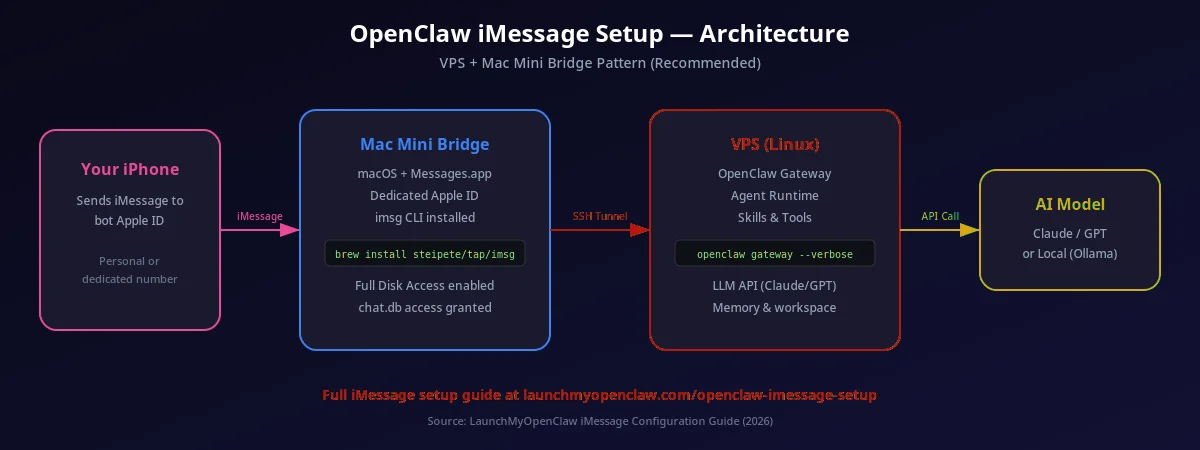
OpenClaw iMessage architecture: VPS ↔ SSH Tunnel ↔ Mac Mini ↔ iMessage
The architecture has three layers. Your iPhone (or any Apple device) sends and receives iMessages normally through Apple's servers. Your Mac Mini runs the Messages app and a bridge tool (BlueBubbles or imsg CLI) that exposes those messages to a local API. Your VPS runs OpenClaw, which connects to the Mac Mini via an SSH tunnel and processes messages with AI.
When someone sends you an iMessage, it arrives on your Mac Mini via Apple's servers. The bridge app detects the new message and makes it available via API. OpenClaw (on the VPS) polls the bridge or receives a webhook, processes the message with your AI model, and sends a reply back through the same bridge. The entire round-trip takes 2-5 seconds depending on your AI model.
This architecture is similar to how WhatsApp automation works, except WhatsApp doesn't require dedicated hardware — it bridges through your phone's QR code pairing. For a unified multi-channel setup, the Maton Gateway can route messages from all your channels to a single OpenClaw instance.
Complete iMessage Setup Guide
The fastest way to get iMessage working with OpenClaw is the imsg CLI. Here are the exact commands — copy and paste them into your Mac's Terminal.
1Install imsg CLI on Your Mac
# Install imsg via Homebrew
brew install steipete/tap/imsg

# Verify installation
imsg --versionInstall Homebrew first: /bin/bash -c "$(curl -fsSL https://raw.githubusercontent.com/Homebrew/install/HEAD/install.sh)". It's the standard package manager for macOS.
2Grant Full Disk Access
macOS protects the iMessage database. You must explicitly grant Terminal access to read messages.
# Open System Settings directly to Full Disk Access
open "x-apple.systempreferences:com.apple.preference.security?Privacy_AllFiles"

# In the window that opens:
# 1. Click the lock to make changes
# 2. Click "+" and add Terminal (or iTerm2)
# 3. Restart Terminal

# Verify access works
imsg listIf you skip Full Disk Access, imsg will fail with "permission denied" errors. This is the #1 reason iMessage automation doesn't work on first try. After granting access, you must restart Terminal completely (Cmd+Q, then reopen).
3Test Sending a Message
# Send a test message (use your own number)
imsg send "+1234567890" "Hello from OpenClaw test"

# List recent messages
imsg list

# Read messages from a specific contact
imsg read "+1234567890" --limit 104Configure openclaw.json for iMessage
On your VPS (or the same Mac if running locally), configure OpenClaw to use the iMessage channel. If your VPS is separate from your Mac, you'll set up SSH bridging in the next step.
{
  "name": "imessage-assistant",
  "model": "claude-sonnet-4-20250514",
  "channels": {
    "imessage": {
      "enabled": true,
      "bridge": "ssh",
      "host": "your-mac-ip-or-hostname",
      "user": "your-mac-username",
      "port": 22
    }
  },
  "skills": ["email", "calendar"],
  "access": {
    "mode": "allowlist",
    "allowed": ["+1234567890", "+0987654321"]
  }
}Always use "allowlist" mode for iMessage automation. Unlike WhatsApp where unknown numbers might message your business, iMessage contacts are typically people you know. The allowlist ensures your AI only responds to approved contacts. See our security guide for more.
Method 1: BlueBubbles Bridge Setup
BlueBubbles is a free, open-source bridge that exposes iMessage through a REST API. This is the most popular method for connecting OpenClaw to iMessage when you need full-featured messaging (reactions, typing indicators, read receipts).
Install BlueBubbles on Your Mac
Download BlueBubbles from bluebubbles.app and install it on the Mac that will serve as your iMessage relay. Sign in with your Apple ID in the macOS Messages app first, then launch BlueBubbles and follow the setup wizard.
Enable the REST API in BlueBubbles Settings
Open BlueBubbles settings and navigate to the API section. Enable the REST API server and note the port number (default is 1234). Set a secure password for API authentication. This API is what OpenClaw will use to send and receive messages.
Install the OpenClaw HTTP Skill
In your terminal, run: openclaw skills add @openclaw/skill-http. This skill allows OpenClaw to make HTTP requests to the BlueBubbles API. It handles authentication, message formatting, and retry logic automatically.
Configure OpenClaw to Poll for New Messages
Set up OpenClaw to periodically check the BlueBubbles API for new incoming messages. Configure your agent's soul.md to define how it should respond to different types of messages. You can set polling intervals, filter by contact, and define response templates.
BlueBubbles vs imsg CLI: Which Bridge to Use?
Both bridges connect OpenClaw to iMessage, but they serve different use cases. Here's a detailed comparison to help you decide.
| Feature | imsg CLI | BlueBubbles |
|---|---|---|
| Setup complexity | Simple (one Homebrew command) | Moderate (server + app) |
| Message types | Text, attachments | Text, reactions, typing, read receipts |
| Reliability | High | Very high |
| Open source | ||
| REST API | ||
| Group chat support | ||
| Webhook notifications | ||
| Best for | Simple automation | Full-featured messaging |
Choose imsg CLI if...
- You want the simplest possible setup
- You only need text messages (no reactions/typing)
- You're comfortable with command-line tools
- You're doing basic automation (auto-replies, notifications)
Choose BlueBubbles if...
- You need full iMessage features (reactions, read receipts)
- You want a REST API for programmatic access
- You need webhook-based real-time notifications
- You manage group chats or high-volume messaging
Method 2: Beeper Bridge (Alternative)
Beeper is a commercial messaging bridge that supports iMessage alongside other platforms. It provides a unified API for multiple messaging services.
Install Beeper on Your Mac
Download and install Beeper from beeper.com. Create an account and complete the initial setup. Beeper will use your Mac's Messages app as the iMessage relay.
Connect Your iMessage Account
Follow Beeper's guided setup to connect your iMessage account. Beeper handles the authentication and bridge configuration automatically. Verify that messages are flowing through the Beeper dashboard.
Use the Beeper API with OpenClaw's HTTP Skill
Install the HTTP skill (openclaw skills add @openclaw/skill-http) and configure it to connect to Beeper's API. Beeper provides API documentation and authentication tokens in your account dashboard.
Setting Up SSH Bridge from VPS to Mac
If you're running OpenClaw on a VPS (recommended for 24/7 uptime), you need an SSH tunnel to securely connect the VPS to your Mac Mini's iMessage bridge. This is the most searched pattern — here's exactly how to set it up.
Step 1: Generate an SSH Key on Your VPS
# Generate a new SSH key (no password for automation)
ssh-keygen -t ed25519 -f ~/.ssh/mac_bridge -N ""

# Display the public key (you'll copy this to your Mac)
cat ~/.ssh/mac_bridge.pub
Step 2: Add the Key to Your Mac
# Enable Remote Login on your Mac
# System Settings → General → Sharing → Remote Login → On

# Add the VPS public key to authorized_keys
echo "YOUR_PUBLIC_KEY_HERE" >> ~/.ssh/authorized_keys
chmod 600 ~/.ssh/authorized_keys
Step 3: Create a Persistent SSH Tunnel
# Install autossh for persistent tunnels
sudo apt install autossh

# Create the tunnel (forwards Mac's port 1234 to VPS localhost:1234)
autossh -M 0 -f -N -o "ServerAliveInterval 30" -o "ServerAliveCountMax 3" \
  -i ~/.ssh/mac_bridge \
  -L 1234:localhost:1234 \
  your-mac-user@your-mac-ip

# Verify the tunnel is active
curl http://localhost:1234/api/v1/pingAdd the autossh command to a systemd service or cron @reboot entry so it automatically reconnects after VPS restarts. The workshop includes a ready-to-use systemd service file.
What Can OpenClaw Do With iMessage?
Auto-Reply to Messages
OpenClaw reads incoming iMessages and sends intelligent replies based on your configured personality and rules. It can handle customer inquiries, answer common questions, and maintain conversation context.
Schedule Follow-Ups
Set up automated follow-up messages that send at specific times. Remind clients about appointments, send check-in messages after meetings, or schedule birthday and holiday greetings.
Summarize Conversation Threads
Ask OpenClaw to summarize long iMessage threads. It can extract key decisions, action items, and important details from group chats or lengthy one-on-one conversations.
Route Urgent Messages to You
Configure OpenClaw to detect urgent messages based on keywords or sender priority. When something important comes in, it can forward the message to your preferred notification channel immediately.
Security Best Practices
You're giving an AI agent access to your private messages. Security matters. Follow these best practices to keep your iMessage automation safe.
Use a Dedicated Apple ID
Create a separate Apple ID for your automation Mac. If something goes wrong — macOS update breaks the bridge, account gets flagged — your personal iMessage is unaffected. This is the single most important security step.
SSH Key Auth Only
Disable password authentication on your Mac's SSH. Use key-based auth only. This prevents brute-force attacks. Add PasswordAuthentication no to your /etc/ssh/sshd_config.
Limit Mac Network Exposure
Don't expose your Mac Mini's SSH port to the public internet. Use a VPN or Tailscale to create a private network between your VPS and Mac. If you must expose SSH, use a non-standard port and fail2ban.
Keep macOS Updated
Regular macOS security updates are critical. Schedule updates during low-traffic hours and test the bridge after each update. The community typically reports compatibility issues within 24 hours of a new macOS release.
When using iMessage automation, messages are decrypted on your Mac for the bridge to process them. They're then sent to your AI model (Claude, GPT, etc.) for processing. If message privacy is a concern, consider using local models via Ollama — your messages never leave your network. Read our full security guide for more details.
Troubleshooting Common Errors
iMessage automation has a few common gotchas. Here are the errors you're most likely to encounter and how to fix them.
"Full Disk Access" Permission Denied
The iMessage database lives in a protected location. Without Full Disk Access, no bridge tool can read messages.
# Open Privacy settings directly
open "x-apple.systempreferences:com.apple.preference.security?Privacy_AllFiles"

# Add Terminal (or iTerm2) to the list
# IMPORTANT: Quit Terminal completely (Cmd+Q) and reopen
# Then verify:
imsg list  # should show recent messages
Session Expired After macOS Update
macOS updates can reset Full Disk Access permissions and break bridge connections. This is the most common cause of "it was working yesterday" issues.
# After a macOS update, re-check Full Disk Access
# System Settings → Privacy & Security → Full Disk Access
# Verify Terminal is still in the list and toggled ON

# Restart the bridge
imsg list  # test imsg
# or restart BlueBubbles

# If using SSH tunnel, restart it
sudo systemctl restart openclaw-bridge  # if using systemd
SSH Tunnel Keeps Dropping
Network interruptions can kill SSH tunnels. Use autossh with keepalive settings for reliable persistent connections.
# Install autossh
sudo apt install autossh  # on VPS

# Use autossh instead of plain ssh
autossh -M 0 -f -N \
  -o "ServerAliveInterval 30" \
  -o "ServerAliveCountMax 3" \
  -o "ExitOnForwardFailure yes" \
  -i ~/.ssh/mac_bridge \
  -L 1234:localhost:1234 \
  user@your-mac-ip
Mac Goes to Sleep / Messages Stop
If your Mac enters sleep mode, the iMessage bridge stops working. Prevent this in Energy settings.
# Prevent sleep via command line
sudo pmset -a sleep 0
sudo pmset -a disablesleep 1

# Or use caffeinate (keeps Mac awake while running)
caffeinate -s &

# Verify sleep is disabled
pmset -g | grep sleep
Limitations to Be Aware Of
Requires a Mac running 24/7. If the Mac shuts down or loses power, the iMessage bridge goes offline and OpenClaw cannot send or receive messages until it is restored.
Apple does not officially support third-party iMessage access. Bridge apps rely on reverse-engineered protocols, which means Apple could break compatibility with any macOS update.
Bridge apps may break after macOS updates. When Apple releases a new version of macOS, BlueBubbles or Beeper may need to release patches before iMessage bridging works again.
End-to-end encryption considerations. Messages are decrypted on your Mac for the bridge to read them. While they stay on your local machine, running any bridge introduces an additional access point to your messages.
WhatsApp automation doesn't require dedicated hardware — just a QR code scan. Telegram bots are even simpler with a bot token. If iMessage isn't a strict requirement, these channels are more reliable for business automation.
Frequently Asked Questions
Connect All Your Messaging Channels
Every week we send one automation that saves 10+ hours of manual work — the same playbooks our clients use to run their businesses on autopilot. Miss a week, miss the edge.
Get the Automation Playbook (Free)
One deploy-ready automation every week. Same strategies our clients pay thousands for. 400+ business owners already inside.
Need it done for you?
Book a Free Strategy Call See what we've built for real businesses →