OpenClaw USER.md Guide
USER.md tells your OpenClaw agent who you are — your name, role, tools, preferences, and working style. Located at ~/.openclaw/workspace/USER.md, this file gets injected into every session's system prompt so your agent always has your personal context. It's the difference between a generic AI and a personalized assistant.
Quick Answer: USER.md is a plain markdown file that stores your personal preferences for how an OpenClaw agent communicates with you. It controls tone (formal vs casual), formatting (bullet points, code blocks, headers), response length, language settings, and recurring instructions. Unlike SOUL.md (which defines the agent's own personality), USER.md is entirely about what you, the user, prefer. It is local-first and part of OpenClaw's modular configuration system.
This guide covers everything about USER.md — how it differs from SOUL.md, what preferences to set, a ready-to-use template, and best practices.
What is USER.md?
Communication Tone
Define whether you want formal, casual, technical, or friendly responses. The agent adapts its writing style to match your preference across all interactions.
Formatting Style
Prefer bullet points over paragraphs? Want code blocks with syntax highlighting? Like headers in every response? USER.md lets you control exactly how information is presented.
Recurring Preferences
Instructions that apply to every interaction — like always explaining acronyms, including source links, or avoiding certain topics. Set once, applied forever.
Language & Locale
Specify your preferred language, date format, currency, measurement units, and timezone. The agent consistently uses your local conventions.
How Does USER.md Differ from SOUL.md?
The most common confusion in OpenClaw configuration. SOUL.md is the agent's identity. USER.md is your preferences. They serve fundamentally different purposes.
| Aspect | SOUL.md | USER.md |
|---|---|---|
| Defines | Who the agent is | What the user prefers |
| Controls | Agent personality, values, decision-making | Communication style, formatting, recurring rules |
| Perspective | Agent-centric ("I am...") | User-centric ("The user prefers...") |
| Changes when | You want a fundamentally different agent | You want different output formatting or tone |
| Example | "I am a careful, methodical assistant that always verifies before acting" | "Always respond with bullet points and keep answers under 200 words" |
| Shared across users | Yes — same personality for all users | No — each user can have their own |
How Do You Set Communication Preferences in USER.md?
USER.md supports six categories of preferences. Each category shapes a different aspect of how the agent interacts with you.
Tone & Voice
Control the conversational style of every response.
- Use a professional but approachable tone
- Avoid corporate jargon and buzzwords
- Be direct — do not hedge or over-qualify statements
- Use humor sparingly and only when contextually appropriate
- Address me by first name (Alex)
Formatting & Structure
Define how information should be visually organized.
- Use bullet points for lists of 3+ items
- Include code blocks with language tags for all code snippets
- Use headers (H2, H3) to organize long responses
- Bold key terms and important takeaways
- Keep paragraphs under 3 sentences
Content Preferences
What to include (or exclude) in every response.
- Always include practical examples, not just theory
- Explain acronyms on first use
- Include estimated time for any task you suggest
- Cite sources or documentation links when available
- Skip disclaimers and legal hedging — I understand the risks
Language & Locale
Regional and language-specific settings.
- Respond in English (US) unless I write in another language
- Use MM/DD/YYYY date format
- Use USD for currency references
- Use imperial measurements with metric in parentheses
- Timezone: EST (UTC-5)
Response Length
Control verbosity and depth of responses.
- Default to concise responses (under 200 words)
- Expand only when I ask for 'detailed' or 'in-depth' responses
- For code questions, show the code first, then explain
- Summarize before diving into details on complex topics
- Use TL;DR at the top of long responses
Workflow Preferences
How the agent should handle tasks and workflows.
- Always confirm before executing destructive actions
- Show me the plan before starting multi-step tasks
- When fixing bugs, explain what caused the issue
- Suggest next steps after completing a task
- If unsure, ask clarifying questions instead of guessing
What Does a Ready-to-Use USER.md Template Look Like?
Copy this template, customize it to your preferences, and save it as USER.md in your OpenClaw project root. Modify any section to match your personal style.
# USER.md — Communication Preferences

## Tone
- Professional but approachable. No corporate jargon.
- Be direct and concise. Skip unnecessary qualifiers.
- Address me as Alex.

## Formatting
- Use bullet points for lists of 3+ items.
- Include code blocks with language tags.
- Bold key terms and important information.
- Keep paragraphs under 3 sentences.

## Content
- Always include practical examples.
- Explain acronyms on first use.
- Skip disclaimers — I understand risks.
- Cite documentation links when relevant.

## Language
- English (US), MM/DD/YYYY, USD, EST timezone.

## Response Length
- Default to concise (under 200 words).
- Expand only when I ask for detail.
- TL;DR at the top of long responses.

## Workflow
- Confirm before destructive actions.
- Show plan before multi-step tasks.
- Suggest next steps after completion.
Copy-Paste USER.md Templates by Role
Trusted by 194+ business owners who configured OpenClaw in our live workshop — endorsed by Josh Nelson's 7 Figure Agency community (20,000+ agency owners). Pick the template that matches your role and customize the bracketed fields.
Solopreneur Template
For founders, freelancers, and solo business owners managing their own tools, schedule, and brand.
# USER.md — Solopreneur

## About Me
- Name: [Your Name]
- Role: Founder & CEO of [Company]
- Industry: [Your Industry]
- Location: [City, Timezone]

## My Tools
- Email: Gmail / Google Workspace
- CRM: HubSpot (free tier)
- Project Management: Notion
- Social Media: LinkedIn, Twitter/X
- Payment: Stripe
- Website: WordPress on [domain]

## Work Schedule
- Active hours: 8am-6pm [timezone]
- Deep work blocks: 9am-12pm (no meetings)
- Weekly review: Fridays at 3pm
- Preferred contact: email for non-urgent, Slack for urgent

## Preferences
- Communication style: Direct, no fluff
- Decision framework: 80/20 — speed over perfection
- Reporting: Weekly summary, daily only if flagged
- Content tone: Professional but approachable

## Current Focus
- Q1 2026: Launch new product line
- Priority: Lead generation and content marketing
- Budget: Bootstrapped — cost-conscious decisions
Agency Owner Template
For agency CEOs managing a team, multiple clients, and complex workflows across platforms.
# USER.md — Agency Owner

## About Me
- Name: [Your Name]
- Role: CEO of [Agency Name]
- Team size: [X] people
- Clients: [X] active retainer clients
- Industry: Digital Marketing / Lead Generation

## My Team
- Account Managers: Handle client communication
- Specialists: SEO, PPC, Email Marketing
- VA Team: Data entry, reporting, scheduling
- I handle: Strategy, sales, and high-value client relationships

## Tools & Platforms
- CRM: GoHighLevel
- Project Management: ClickUp
- Communication: Slack (internal), email (clients)
- Reporting: Google Data Studio
- Ads: Google Ads, Meta Ads Manager
- Email: Instantly, Smartlead

## Client Context
- Niche: [Your niche — e.g., home services, real estate, legal]
- Avg client value: $[X]/month
- Onboarding process: 2-week ramp-up
- Reporting cadence: Monthly reports, weekly check-ins

## Preferences
- Always flag issues before they reach the client
- Summarize complex data into executive-level insights
- Track SOPs — link to relevant SOP before suggesting process changes
- Never commit to timelines without my approval
Developer Template
For engineers and technical leads who want their agent to understand their stack, style, and workflow conventions.
# USER.md — Developer

## About Me
- Name: [Your Name]
- Role: Senior Full-Stack Developer
- Languages: TypeScript, Python, Go
- Experience: [X] years

## Tech Stack
- Frontend: React, Next.js, Tailwind CSS
- Backend: Node.js, FastAPI, PostgreSQL
- Infrastructure: AWS (ECS, Lambda, RDS), Docker
- CI/CD: GitHub Actions
- Monitoring: Datadog, Sentry

## Coding Preferences
- Style: Functional over OOP when possible
- Testing: Jest for unit, Playwright for E2E
- PRs: Small, focused — one concern per PR
- Code review: I value readability over cleverness
- Comments: Only for "why", not "what"

## Repositories
- Main project: github.com/[org]/[repo]
- API docs: internal wiki at [URL]
- Deployment: Merged to main = auto-deploy to staging

## Workflow
- IDE: VS Code with Vim keybindings
- Terminal: iTerm2 + tmux
- Branch strategy: feature/ → PR → main
- Standup: 9:15am daily in #dev-standup
How USER.md Gets Injected Into the System Prompt
Understanding the technical flow helps you write better USER.md content and manage your token budget effectively.
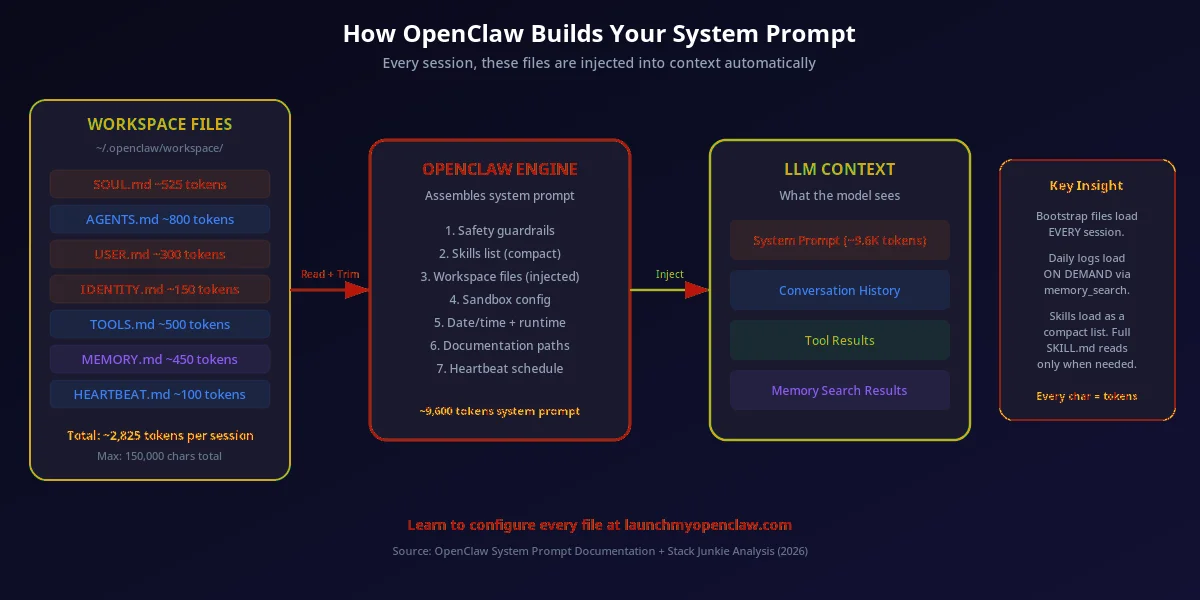
System Prompt Assembly Flow
At session start, OpenClaw assembles the full system prompt by concatenating configuration files in order. Here is how it works:
- 1
OpenClaw reads ~/.openclaw/workspace/USER.md
The runtime loads your USER.md from the standard workspace directory. The entire file content is read into memory.
- 2
Content is concatenated with SOUL.md and AGENTS.md
USER.md is combined with SOUL.md (agent identity) and AGENTS.md (operating rules) into a single assembled system prompt string. Each file contributes a distinct section.
- 3
The LLM receives the assembled context every session
The combined system prompt is sent to the language model at the start of each new session. The model has full awareness of your personal context from the very first message.
- 4
Token budget implications
Every character in USER.md consumes tokens from your context window. A typical USER.md is 300–800 tokens. Keep it focused — long USER.md files reduce the context available for conversation. Aim for under 1,000 tokens.
What NOT to Put in USER.md
USER.md is read by your AI agent every session. Some types of information should never appear in this file.
Passwords or API keys
Never store credentials in USER.md. Use environment variables or a secrets manager. USER.md may be read by multiple agents and can appear in logs.
Sensitive personal data
Do not include Social Security Numbers, bank account details, financial account numbers, or government IDs. This file is plain text and not encrypted at rest.
Temporary tasks or one-off instructions
USER.md is injected every session. One-time tasks bloat the system prompt and confuse the agent. Use MEMORY.md or mention tasks in the chat directly.
Other people's personal information
Do not include clients', employees', or partners' personal details. This creates privacy liability and is unnecessary for agent context.
Data that changes daily
Stale context is worse than no context. If something changes every day (current pipeline, daily tasks, live metrics), it will be outdated by the next session. Use MEMORY.md or real-time tool calls instead.
USER.md vs MEMORY.md: When to Use Each
Both files give your agent context — but they serve different purposes. Using the right file for the right type of information keeps your agent accurate and your system prompt lean.
USER.md
Static personal context — defined by you, rarely changes
- Your name, role, and company
- Your tech stack and preferred tools
- Your communication and formatting style
- Your work schedule and timezone
- Your team structure and responsibilities
- Stable priorities (quarterly goals, not daily tasks)
MEMORY.md
Dynamic evolving context — learned and updated over time
- Decisions made in previous sessions
- Facts discovered during research tasks
- Project-specific context that evolves
- Feedback and corrections you've given
- Ongoing task progress and status
- Patterns the agent has learned about your behavior
Rule of Thumb
If the information changes less than once a month, it belongs in USER.md. If it evolves continuously as you work, it belongs in MEMORY.md.
How USER.md Fits in the Configuration Stack
USER.md is loaded as part of the identity layer during agent startup. Here is the complete loading order and how each file contributes.
- openclaw.json loads first — technical settings, model provider, Gateway config
- SOUL.md loads second — establishes the agent's core personality and values
- USER.md loads third — applies your communication and formatting preferences
- TOOLS.md loads fourth — defines what capabilities and permissions the agent has
- BOOT.md loads last — runs the startup initialization ritual
- USER.md preferences override SOUL.md when they conflict (user preferences win)
- All files are plain markdown (except openclaw.json) — edit with any text editor
- Changes to USER.md take effect on the next agent startup — no restart needed for some settings
What Are the Most Common USER.md Questions?
Your Competitors Are Already Automating. Are You?
Every week we send one automation that saves 10+ hours of manual work — the same playbooks our clients use to run their businesses on autopilot. Miss a week, miss the edge.
Get the Automation Playbook (Free)
One deploy-ready automation every week. Same strategies our clients pay thousands for. 400+ business owners already inside.
Need it done for you?
Book a Free Strategy Call See what we've built for real businesses →